
DML MultiButtons PRO2
DML MultiButton PRO is an advanced tool designed for downloading and visualizing DML levels directly on the chart. This tool includes various functions that simplify working with DML levels and offers automatic level updates. With customizable parameters and intuitive buttons, MultiButton PRO enables quick decision-making, providing better control over executed setups. It is an ideal tool for traders looking for a simple and effective way to manage DML levels in their daily trading.
DML Multibuttons PRO2 - User Guide
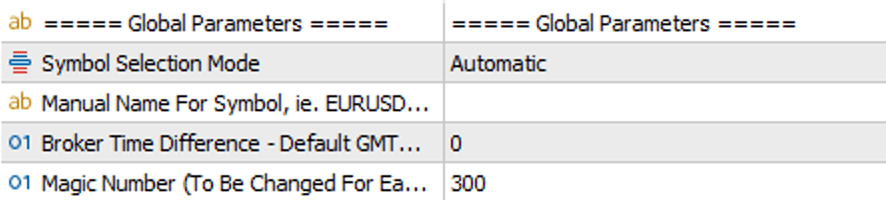
=== Global Parameters ===
Symbol Selection Mode (Automatic/Manual): In "Automatic" mode, the indicator automatically detects the financial instrument. If automatic detection does not work correctly, you can manually enter the symbol name in "Manual" mode.
Manual Name For Symbol: Field for manually entering the name of the financial instrument.
Time Default: The default time is GMT 0. This may need to be adjusted depending on the time zone of your broker's servers.
MagicNo: Field for entering a unique Magic Number for the indicator. Each indicator on a single financial instrument must have its own unique Magic Number.
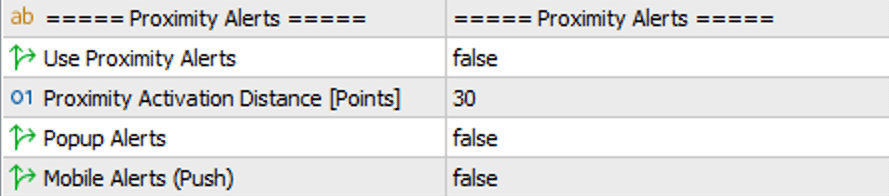
=== Proximity alerts ===
Proximity alerts: Enables/disables options related to alerts.
Proximity activation distance (Points): Specifies the sensitivity of the alert. This parameter indicates the number of points between the selected DML level and the price that will trigger the alert.
Popup Alerts: Enables/disables the pop-up notification alert.
Mobile Alerts: Enables/disables the alert in the form of a notification on mobile devices.
=== Always Display Levels ===
Always Display Extended Levels: Shows/hides historically extended DML levels.
Always Display Alert Levels: Shows/hides historically marked alerts on DML levels.
Note: "Always Display Extended Levels" and "Always Display Alert Levels" work in such a way that if you have purchased a package with 50 days of history but visualize (set in the "Look Back Days Of History" option) only 10 days of history, levels older than 10 days will only be visible if they have been extended or have an alert set.

=== New Level Distance ===
Use New Level Distance Alerts: Enables/Disables alerts that monitor the distance of new DML levels appearing. This function is crucial for models played in relation to FlowZone (FZ) zones.
Popup Alerts: Enables/disables the pop-up notification alert.
Mobile Alerts: Enables/disables the alert in the form of a notification on mobile devices.

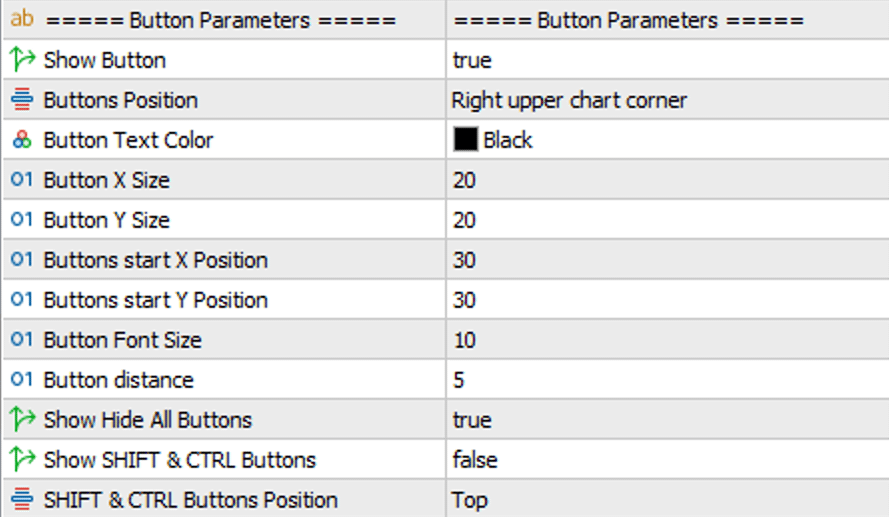
=== Button Parameters ===
Show Buttons: Shows or hides buttons associated with specific DML levels (colors).
Buttons Position: Specifies the corner of the chart where the buttons will be placed.
Button Text Color: The color of the text on the button.
Button X Size: The size of the button horizontally (relative to the X-axis).
Button Y Size: The size of the button vertically (relative to the Y-axis).
Buttons start X Position: Specifies the starting position - relative to the X-axis - for the list of DML level buttons.
Buttons start Y Position: Specifies the starting position - relative to the Y-axis - for the list of DML level buttons.
Button Font Size: Specifies the font size on the button.
Button Distance: Specifies the distance between the buttons.
Show Hide Al Buttons: Displays a dedicated button for quickly hiding the visualized DML levels. This feature allows for convenient management of DML level visibility without needing to delete or manually deactivate each level individually.
Show SHIFT & CTRL buttons: Shows/hides the buttons responsible for switching to the permanent mode of extending (SHIFT) and alerting (CTRL) DML levels.
SHIFT & CTRL Buttons Position: A parameter that allows you to indicate on which side of the DML level buttons the "extended menu" should appear.
Note: Regardless of whether the SHIFT and CTRL buttons are visible, a hidden function allows you to extend the selected DML level (by holding the SHIFT key on the keyboard + left-clicking on the selected DML level) and set an alert on the selected DML level (by holding the CTRL key + left-clicking on the selected DML level). To activate the alert, the corresponding function must be enabled in the "Proximity alerts" group.
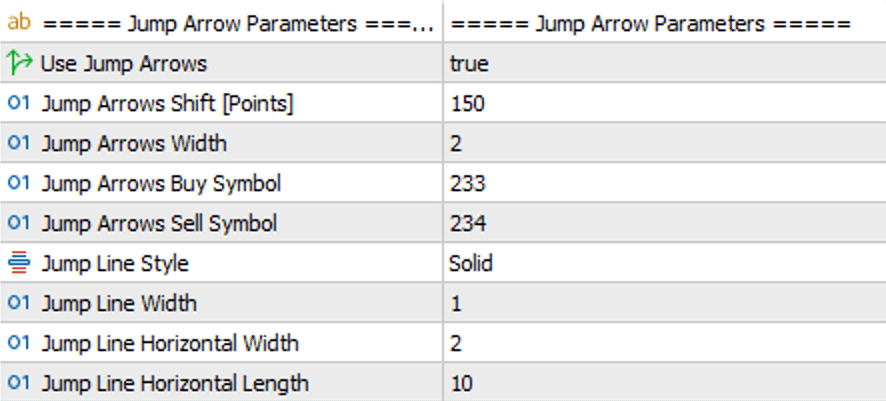
=== Jump Arrow Param. ===
Use Jump Arrows - Enables and disables the functionality that shows price breakouts (set in the New Level Distance parameter) in the form of graphical representation, such as arrows.
Jump Arrows Shift - The shift of the arrow relative to the signal candle. Expressed in points.
Jump Arrows Width - The thickness of the line drawing the signal arrows.
Jump Arrows Buy Symbol - The number of the symbol - from the font symbol table - indicating the BUY signal candle.
Jump Arrows Sell Symbol - The number of the symbol - from the font symbol table - indicating the SELL signal candle.
Jump Line Style - The style of the vertical line indicating the signal candle.
Jump Line Width - The thickness of the vertical line indicating the signal candle.
Jump Line Horizontal Width - The style of the horizontal line indicating the OPEN of the signal candle.
Jump Line Horizontal Length - The length of the horizontal line indicating the OPEN of the signal candle. The unit is the multiple of the time interval you are viewing the chart on.
Note: To visualize the vertical signal line, click the arrow while holding the left SHIFT key. If you want to remove the vertical line, click the arrow again (while holding the SHIFT key).
Extra Tip: If you hide the level visualization (HIDE button), only the signal arrows will remain on the chart. This makes the chart clearer, and the signal arrows from multiple levels can better highlight important price breakouts for the market.
=== Levels Parameters ===
DML Level Name: The name of the DML level being configured. You can assign your own name to this level. For example: SkyBlue, Khaki, Snow, etc., according to the contents of the purchased package. In the DML EA, you can include up to 21 different DML levels, allowing you to combine levels purchased in various packages.
Button Color: Setting the button color assigned to this level. The optimal solution is to assign the button color to match the DML level color. In the case of an alphanumeric DML level name, such as DeepSkyBlue2, only the color's proper name should be entered in the color field, without the number. Colors to choose from, in this example, "Gray" is selected.
Look Back Days Of History: The number of days of history that the EA analyzes in retrospect to generate DML levels. The value "10" means that the EA analyzes data from the last 10 days.
Start Display Time: The time at which the DML levels for this level (Level 10) start to be displayed. The value "00:00" indicates that DML levels will be displayed starting from midnight.
Stop Display Time: The time at which the DML levels for this level (Level 10) stop being displayed. The value "24:00" indicates that DML levels will be displayed throughout the entire day.
Min New Level Dist: The minimum distance between consecutive levels, upon reaching which an alert is activated. The behavior of this alert is configured in the "New Level Distance Alerts" block.
Number Of Minutes In Breakout Zone: This parameter defines the duration of the "Breakout Zone" cloud in minutes. After this time has passed, if the price breaks out of this zone, it is treated as an opportunity to look for a position in the direction opposite to the breakout. This mechanism helps track liquidity flow shifts, enhancing the effectiveness of DML levels, independent of direct price movements.
