
Data Download
Downloading DML levels to your chart is simplified to a minimum. However, each trading platform has its own specifics and must be properly prepared to receive real-time data. Some levels are downloaded once a week, once a day, hourly or every 5 minutes. How to prepare the trading platform, which files to download, and where to place them? You will find the answers to these questions in this lesson.
Downloading DML Levels
Q: In what form are DML levels delivered?
A: DML levels are delivered in the form of horizontal lines - objects - published on the price chart of the selected currency pair. These lines vary in thickness, can be solid or dashed, and each level has a different color. Sometimes a single level consists of four or even six parallel lines. The length of the lines can range from a few minutes to several days.
Q: How to download DML levels to your chart?
A: Depending on the trading platform, DML levels can be downloaded using a dedicated tool in the form of an Expert Advisor (EA) or a library and indicator. Information on which indicators, libraries, etc., to download and where to place them on your disk can be found below.
Q: Can DML levels be downloaded on mobile platforms?
A: Unfortunately, at the moment, it is not possible to download DML levels on mobile platforms. However, our tools have the option to set PUSH alerts and send them to mobile phones.
Q: On which trading platforms can DML levels be downloaded?
A: Below you will find a list of available trading platforms on which DML levels can be downloaded. We are continuously expanding our capabilities and will gradually increase the number of supported trading platforms.



How to Install DML Levels as EA?
How to Install DML Levels as Indicator?
How to Download DML Levels?
#2 - Go to the "Download" Tab
In the left menu, there is a "Download" tab where you will find all the files necessary for downloading DML levels.
#3 - Download the file
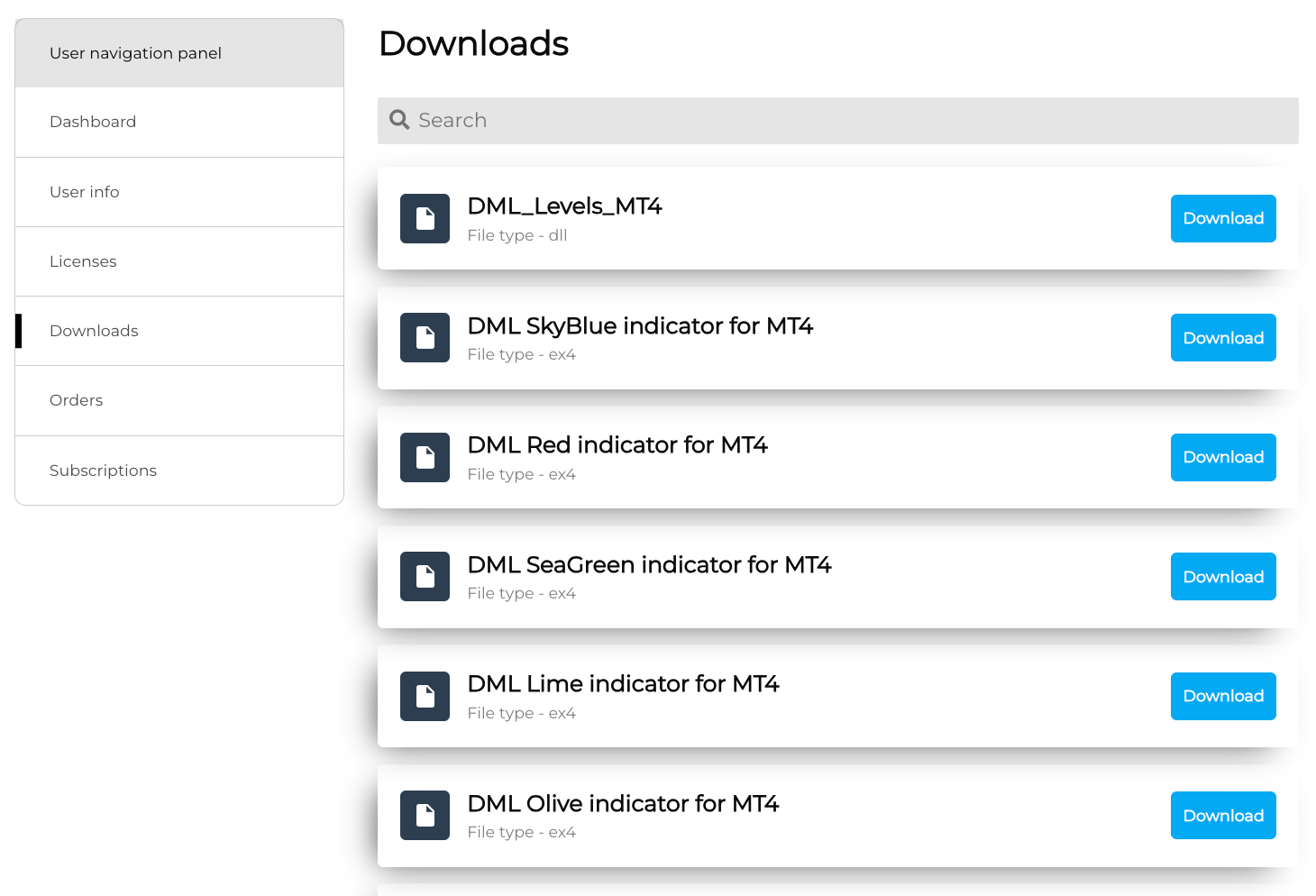
In the "Download" tab, you will find a long list of files that you can download.
To quickly find the file that interests you, use the search function located above the file list.
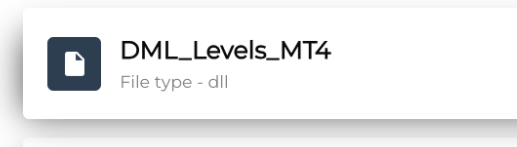
Each file has a name and information about its system extension, such as ex4, ex5, dll, indicating the trading platform for which the tool is dedicated.
If you find the file you are interested in, click the "Download" button on the right side and save the downloaded file to your computer's disk.
Settings for MetaTrader 4 platform

Download the EA File
To download DML levels using the Expert Advisor tool, download the DML Reader EA MT4 file.
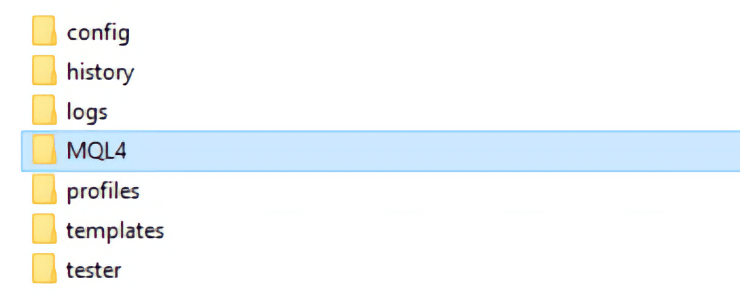
Place the downloaded file in the Experts folder (Top menu >> File >> Open Data Folder >> MQL4 >> Experts).
To ensure the EA file works correctly, you must configure the trading platform before placing the file on the chart. Instructions on how to do this can be found below.
Restart the trading platform.
Download the Indicator File
To download DML levels using the indicator tool, download the file dedicated to the specific color of DML levels, e.g., DML SkyBlue, DML Red, etc.
Place the downloaded file in the Indicators folder (Top menu >> File >> Open Data Folder >> MQL4 >> Indicators).
To ensure the indicator file works correctly, you must configure the trading platform and download the DLL library before placing the file on the chart.
Place the DLL library in the Libraries folder (Top menu >> File >> Open Data Folder >> MQL4 >> Libraries). Ensure the library file is named "DML_License_MT4.dll".
Instructions on how to configure the trading platform can be found below.
Restart the trading platform.

MT4 Platform Settings
Before downloading DML levels for the first time, you need to properly configure your platform.
Go to the Expert Advisors settings (Top menu >> Tools >> Options >> Expert Advisors).
Check the "Allow automated trading" checkbox.
Check the "Allow DLL imports" checkbox.
Check the "Allow WebRequest for listed URL" checkbox.
Add the DML server address to the list of allowed Web addresses - https://deepmarketlevel.com
Settings for MetaTrader 5 platform
Download the EA File
To download DML levels using the Expert Advisor tool, download the DML Reader EA MT5 file.
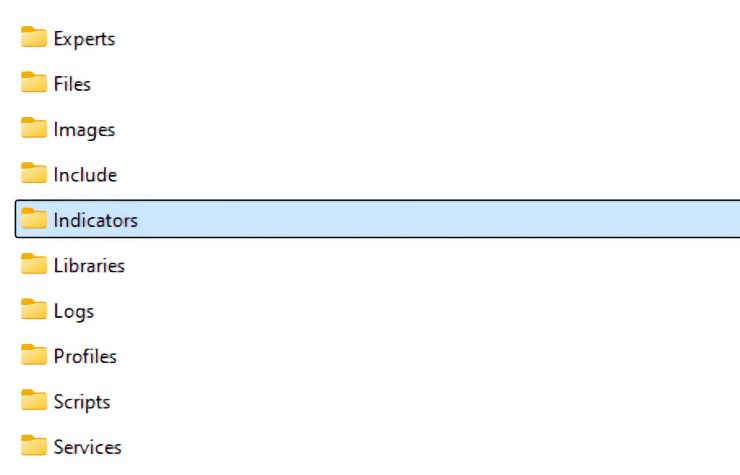
Place the downloaded file in the Experts folder (Top menu >> File >> Open Data Folder >> MQL5 >> Experts).
To ensure the EA file works correctly, you must configure the trading platform before placing the file on the chart. Instructions on how to do this can be found below.
Restart the trading platform.
Download the Indicator File
To download DML levels using the indicator tool, download the file dedicated to the specific color of DML levels, e.g., DML SkyBlue, DML Red, etc.
Place the downloaded file in the Indicators folder (Top menu >> File >> Open Data Folder >> MQL5 >> Indicators).
To ensure the indicator file works correctly, you must configure the trading platform and download the DLL library before placing the file on the chart.
Place the DLL library in the Libraries folder (Top menu >> File >> Open Data Folder >> MQL5 >> Libraries). Ensure the library file is named "DML_License_MT5.dll".
Instructions on how to configure the trading platform can be found below.
Restart the trading platform.
MT5 Platform Settings
Before downloading DML levels for the first time, you need to properly configure your platform.
Go to the Expert Advisors settings (Top menu >> Tools >> Options >> Expert Advisors).
Check the "Allow automated trading" checkbox.
Check the "Allow DLL imports" checkbox.
Check the "Allow WebRequest for listed URL" checkbox.
Add the DML server address to the list of allowed Web addresses - https://deepmarketlevel.com
Settings for cTrader platform

Download Data via Algo File
To install an algo (algorithm) file on the cTrader platform, follow these steps:
Open the cTrader platform.
Click on the "Algo" tab at the top of the interface.
In the Algo window, find and click the "Create" or "New" button.
Select the "Import" option from the dropdown menu.
A dialog box will appear. Use it to find and select the algo file you want to install. Algo files for cTrader typically have the .algo extension.
After selecting the file, click "Open" or "OK".
cTrader will import the algorithm. If everything goes smoothly, you will see the new algo listed in the Algo window.